
Platform
The real screens of StreamWorks, showing a demo church — Hillside, four campuses and a few weeks of made-up services. You can look around it yourself.
Anchor
Most streaming sends the picture straight out and hopes the connection holds. Anchor saves every piece of the service at the source first, and makes everything else from that recording — the campus screens, the web, the captions and the podcast.
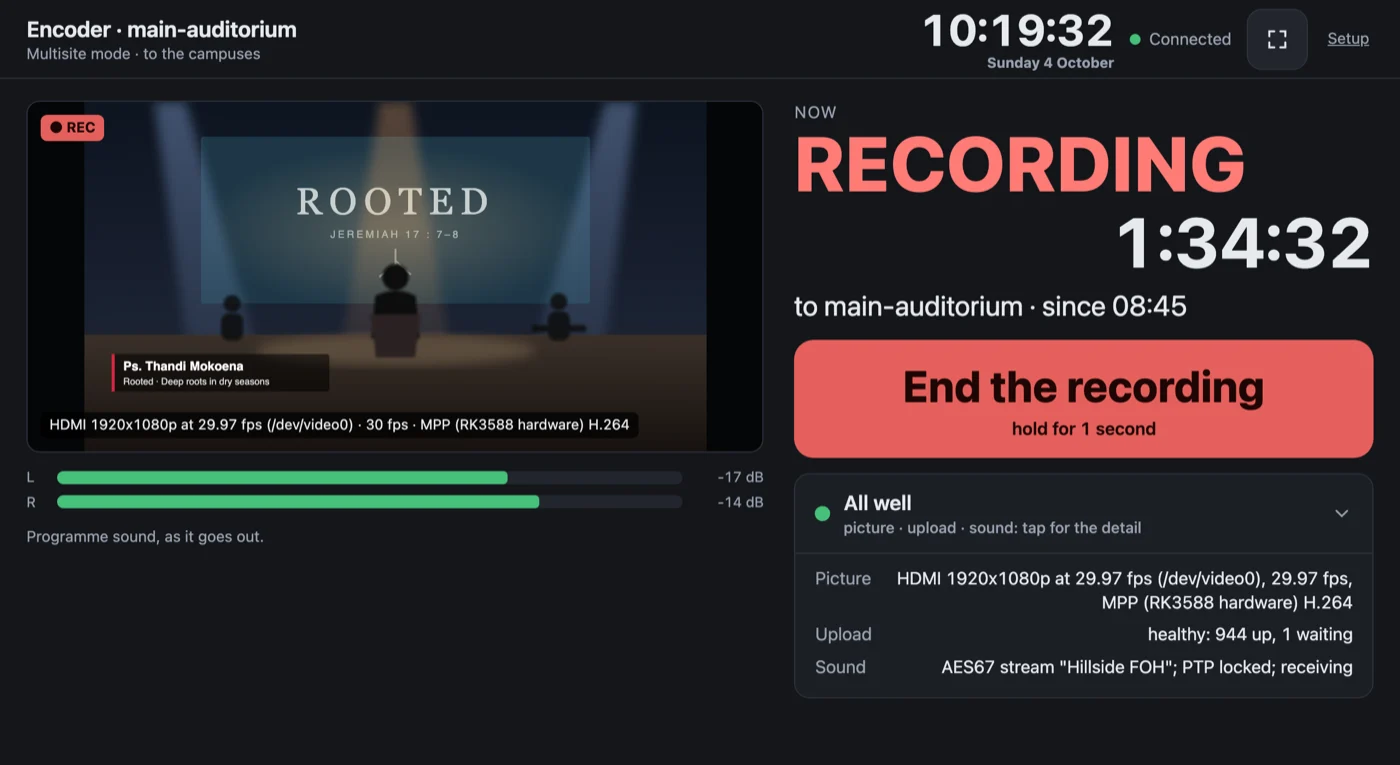
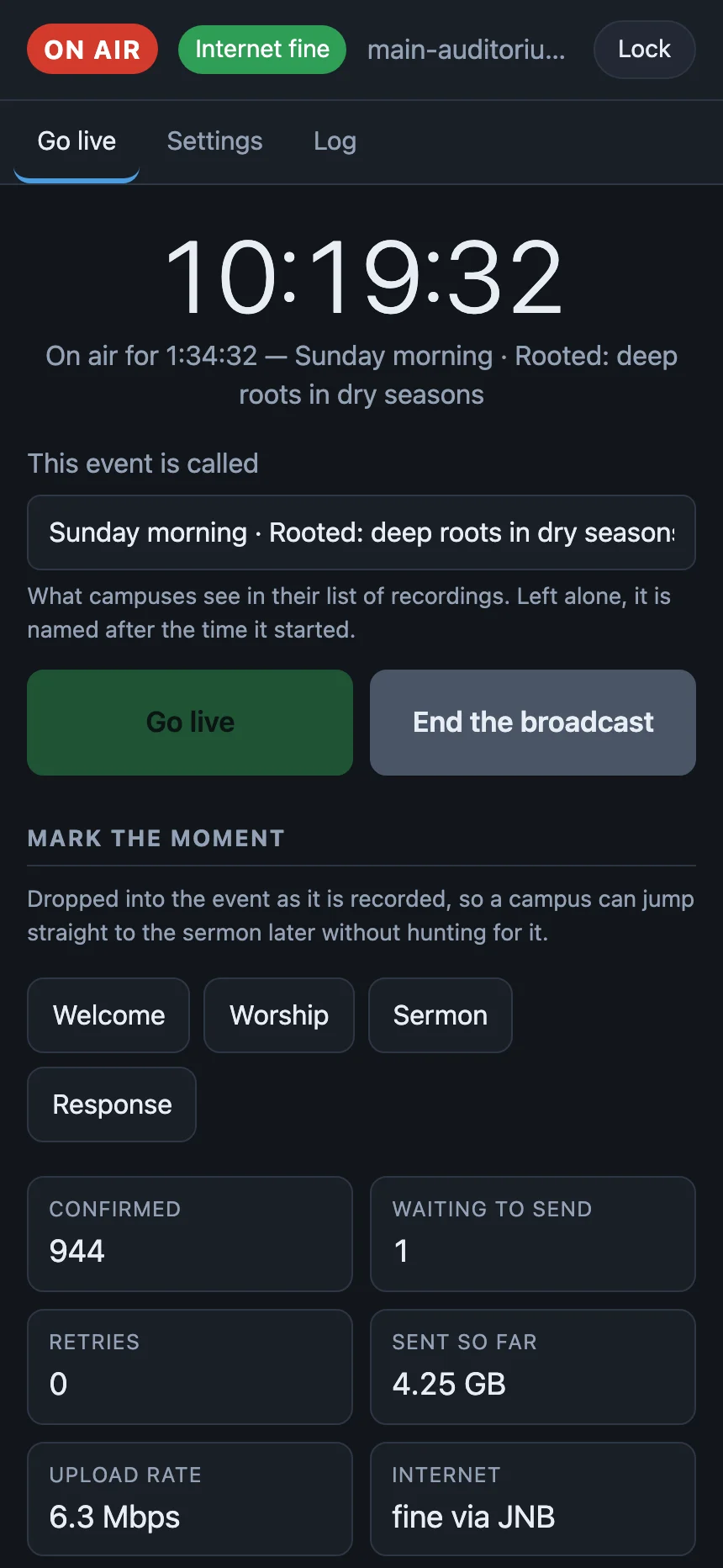
The sender shows what’s going in, that it’s recording and for how long, and one line on whether picture, upload and sound are all well. Ending takes a one-second press, so nobody ends the service by brushing the screen.
Campus control
Each campus has a box of its own, holding its own copy of the service. A volunteer runs it with a few big buttons — on a tablet, a phone or a Stream Deck — and cues keep every campus on the same moments.
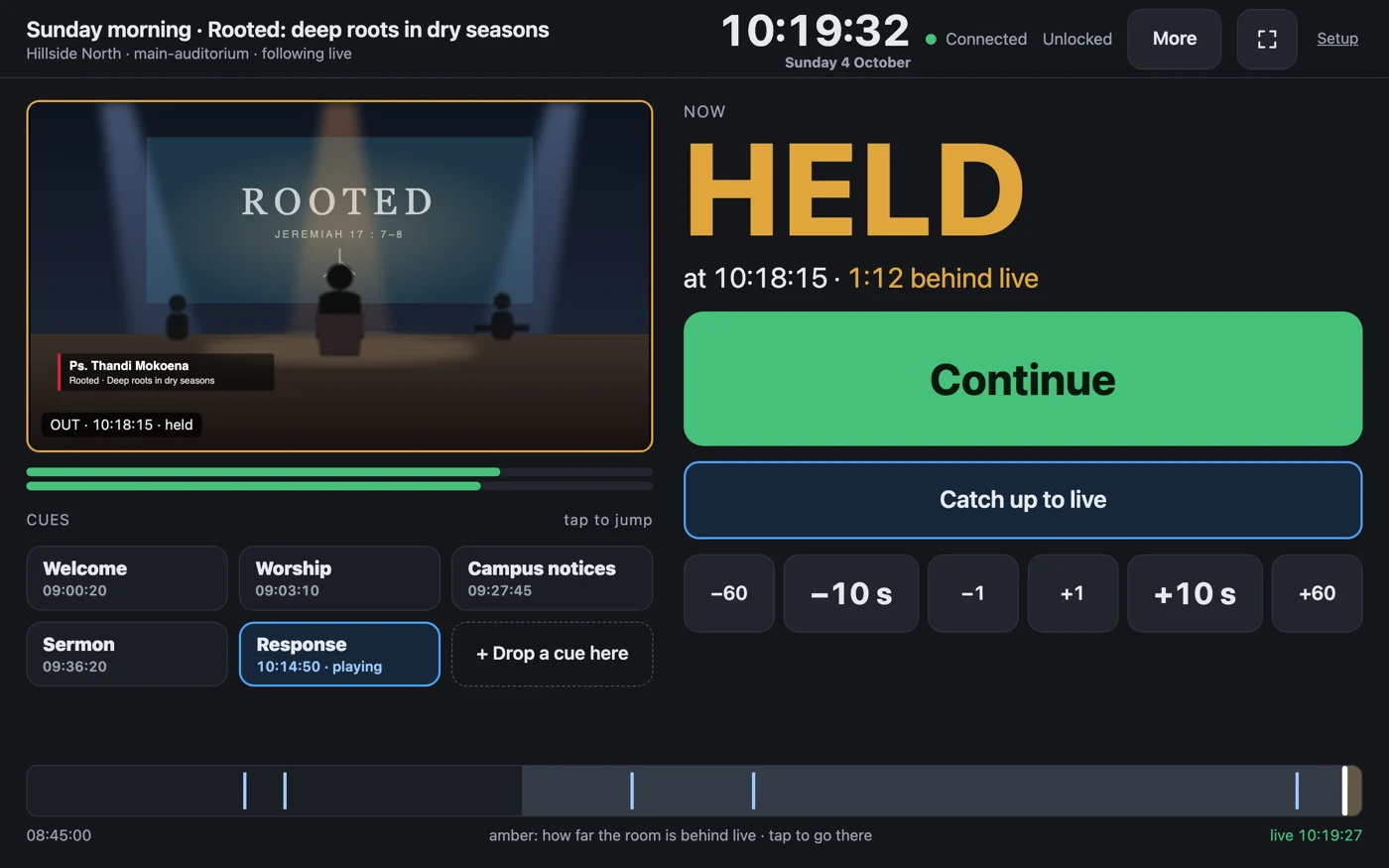
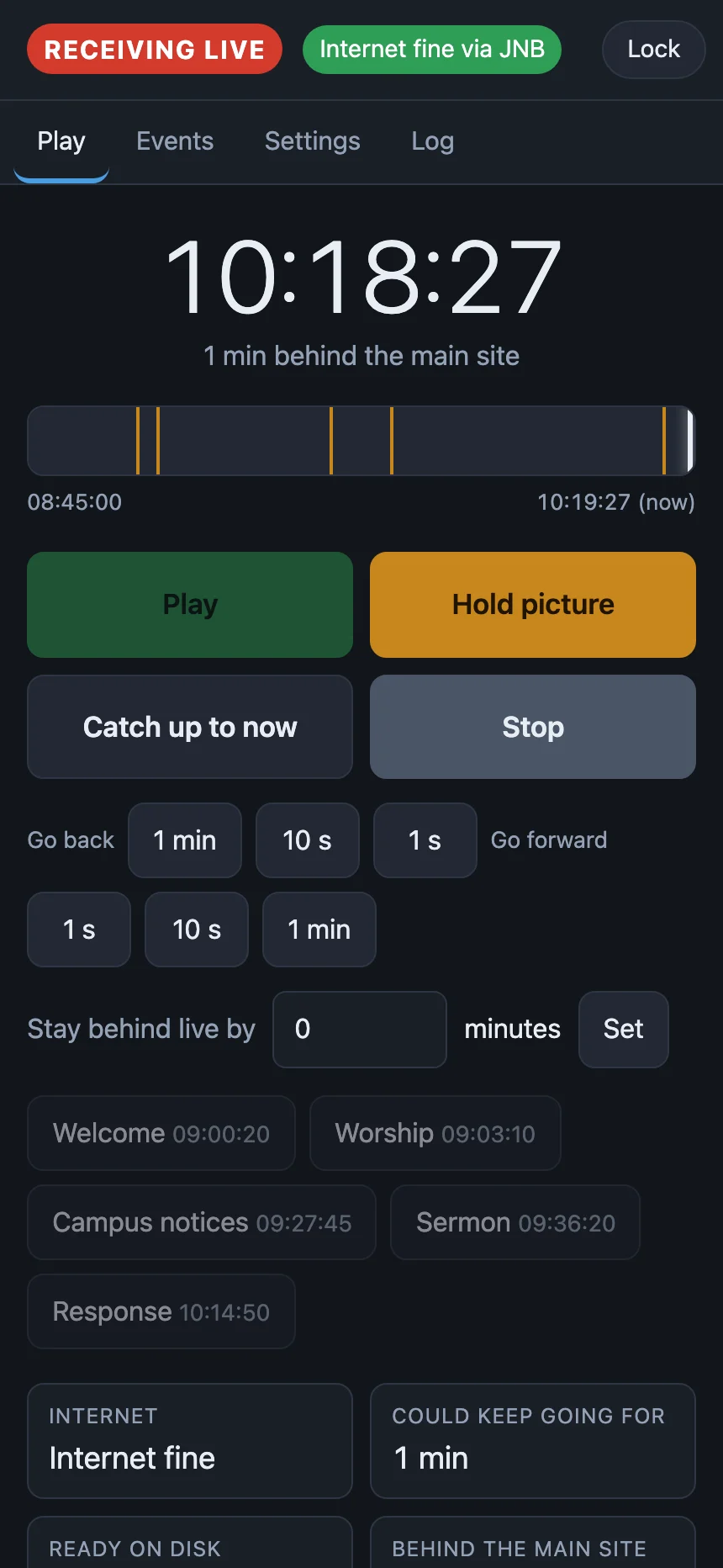
What’s on screen, how far behind live, and which part of the service it’s in — readable from the back of the room. Hold, catch up, nudge forward or back.
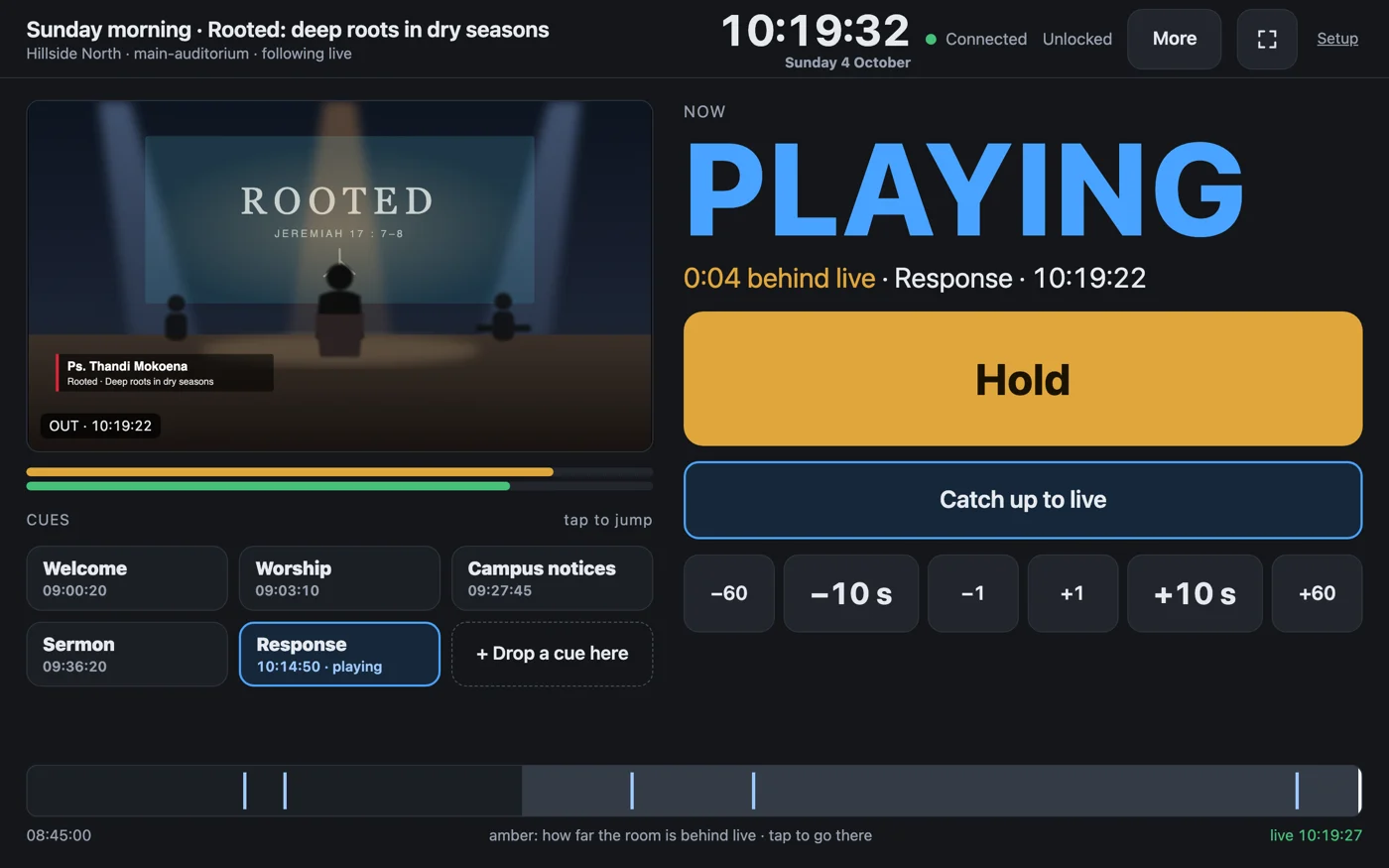
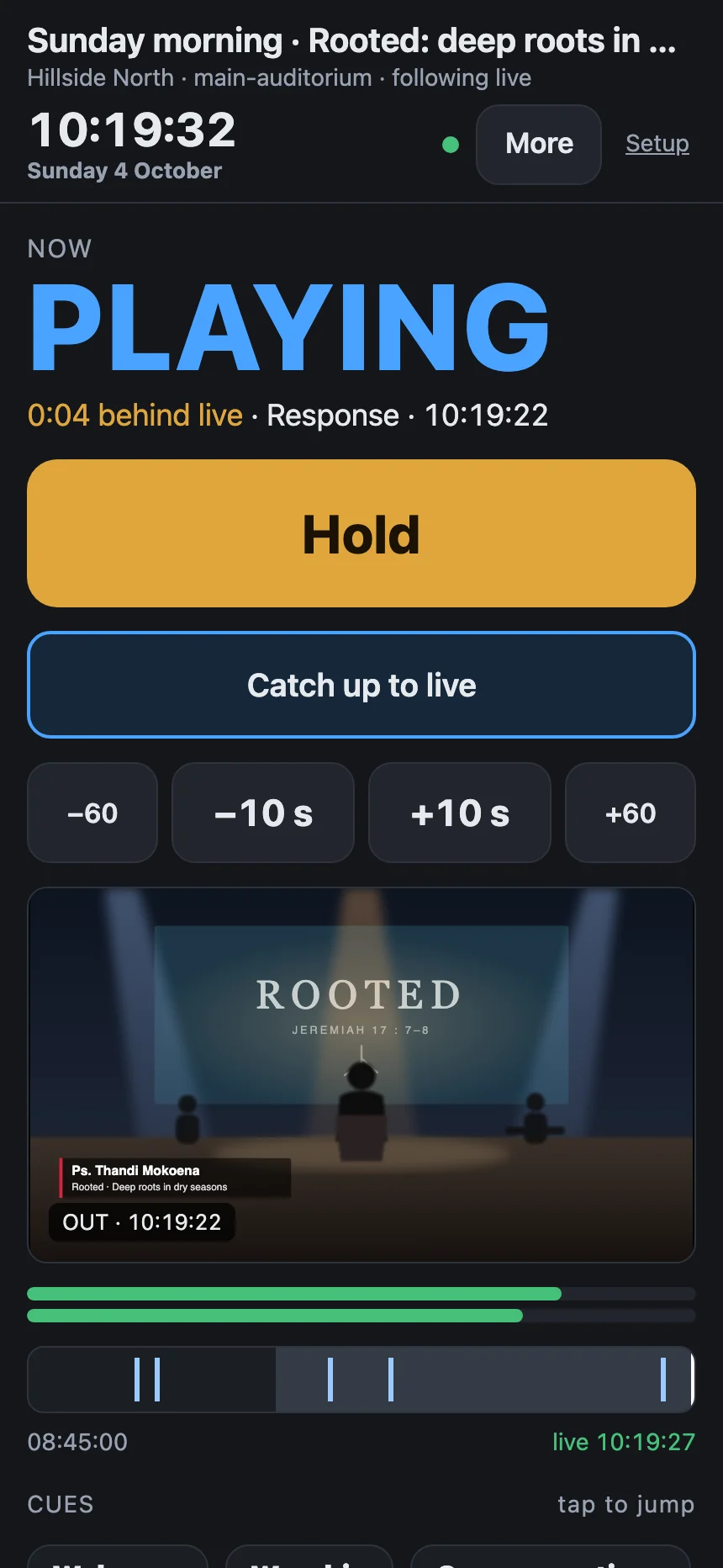
Press Hold for the campus pastor’s welcome or your own notices. The screen waits while the box keeps taking in the service behind it. Continue picks up exactly where you held; Catch up jumps back to live.
Or sit a set time behind all service long, so a campus that starts later still begins at the beginning.
A cue is a named moment — Welcome, Sermon, Response. The main campus drops them as the service runs, any campus can drop its own, and each shows who set it. One press goes there.
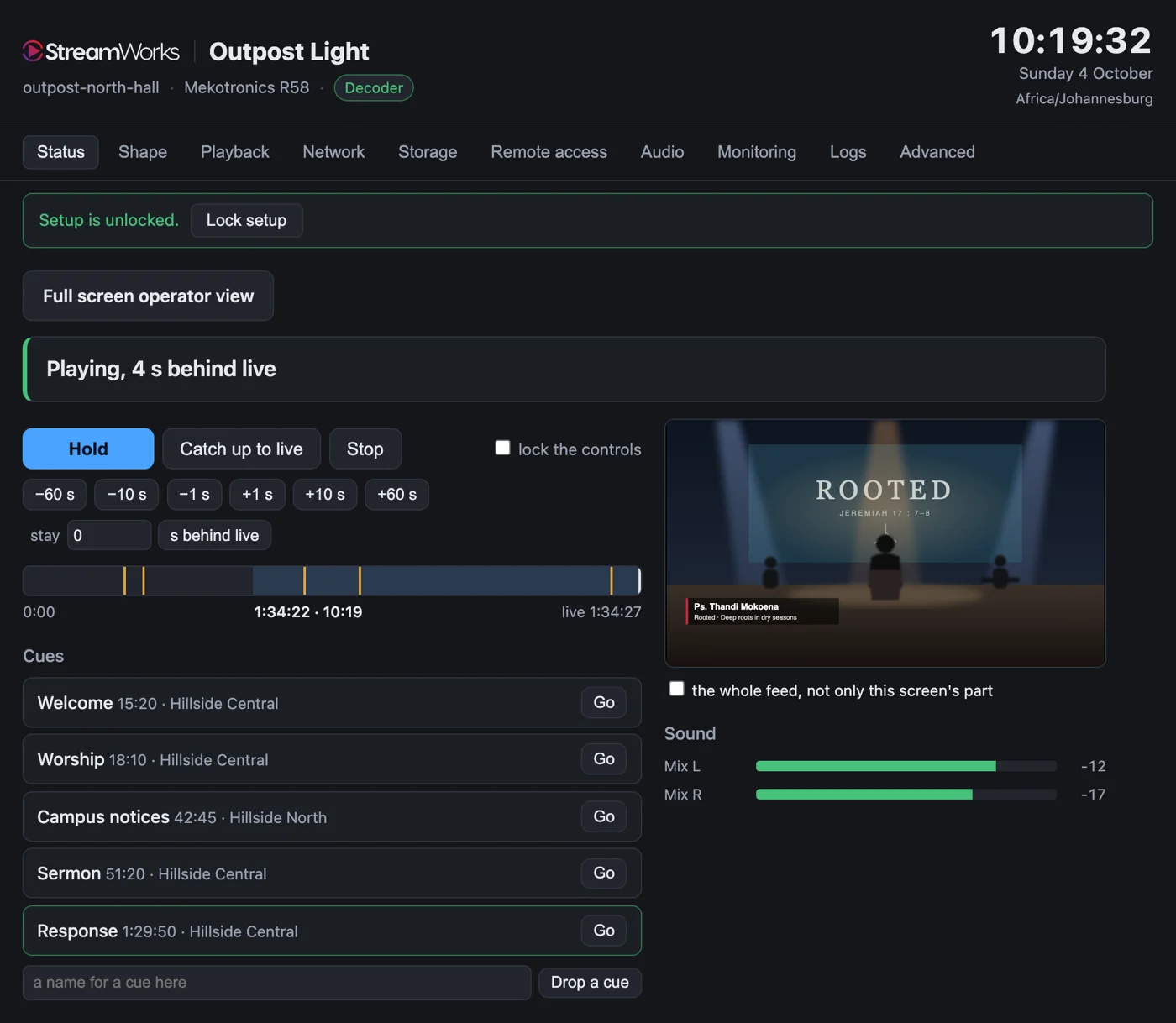
The Bitfocus Companion module puts the same controls on buttons: play, hold, catch up, a button per cue, and lights for live, how far behind, and whether the box is answering. It drives OBS, a campus player or an Outpost.
In early release, installed as a developer module while it waits for the Companion store. The picture is a drawing of its campus buttons.
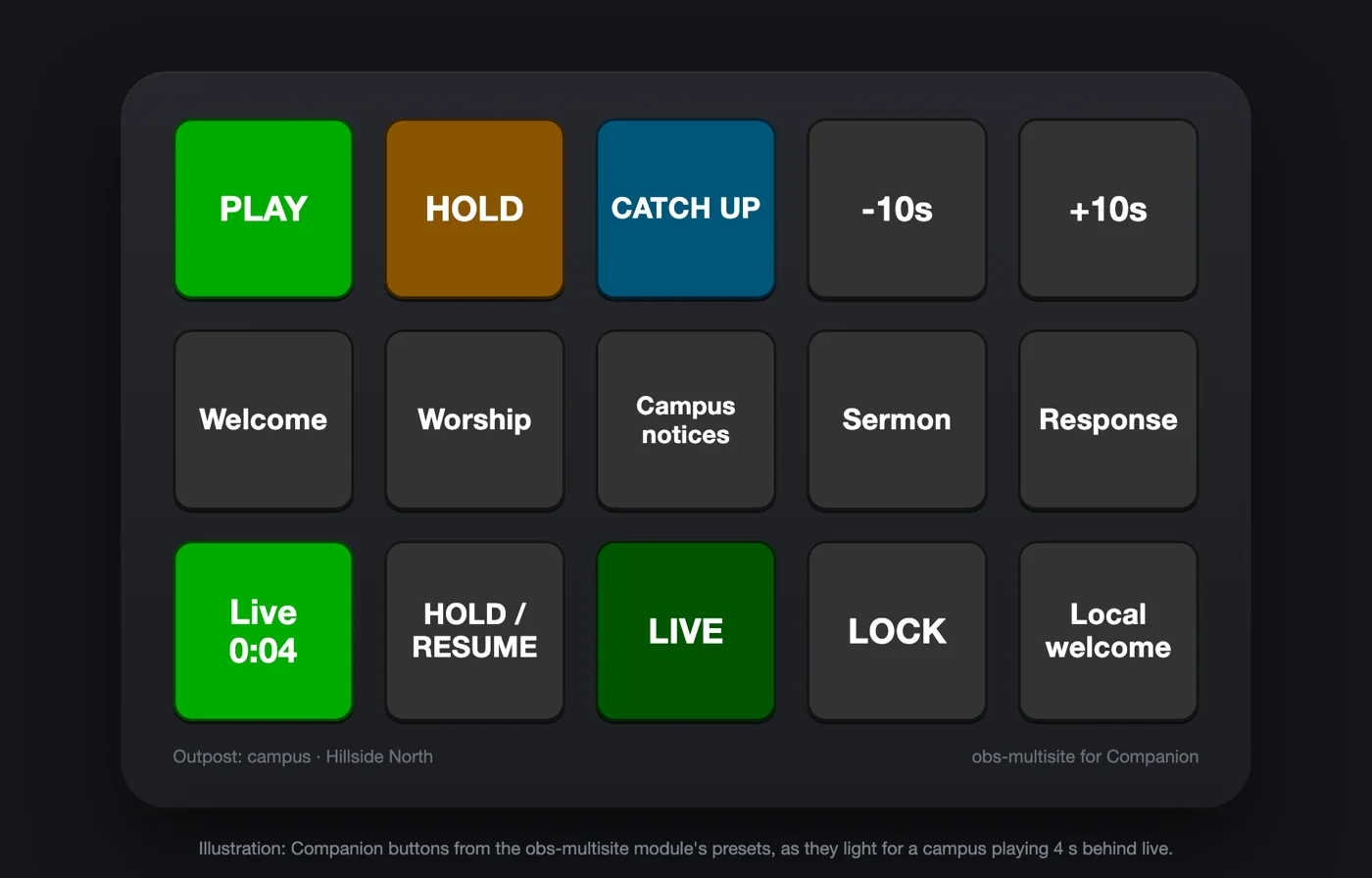
Set how far this campus sits behind live, lock the controls, or put an earlier service on screen — last Sunday’s, or the one the main campus has just finished.
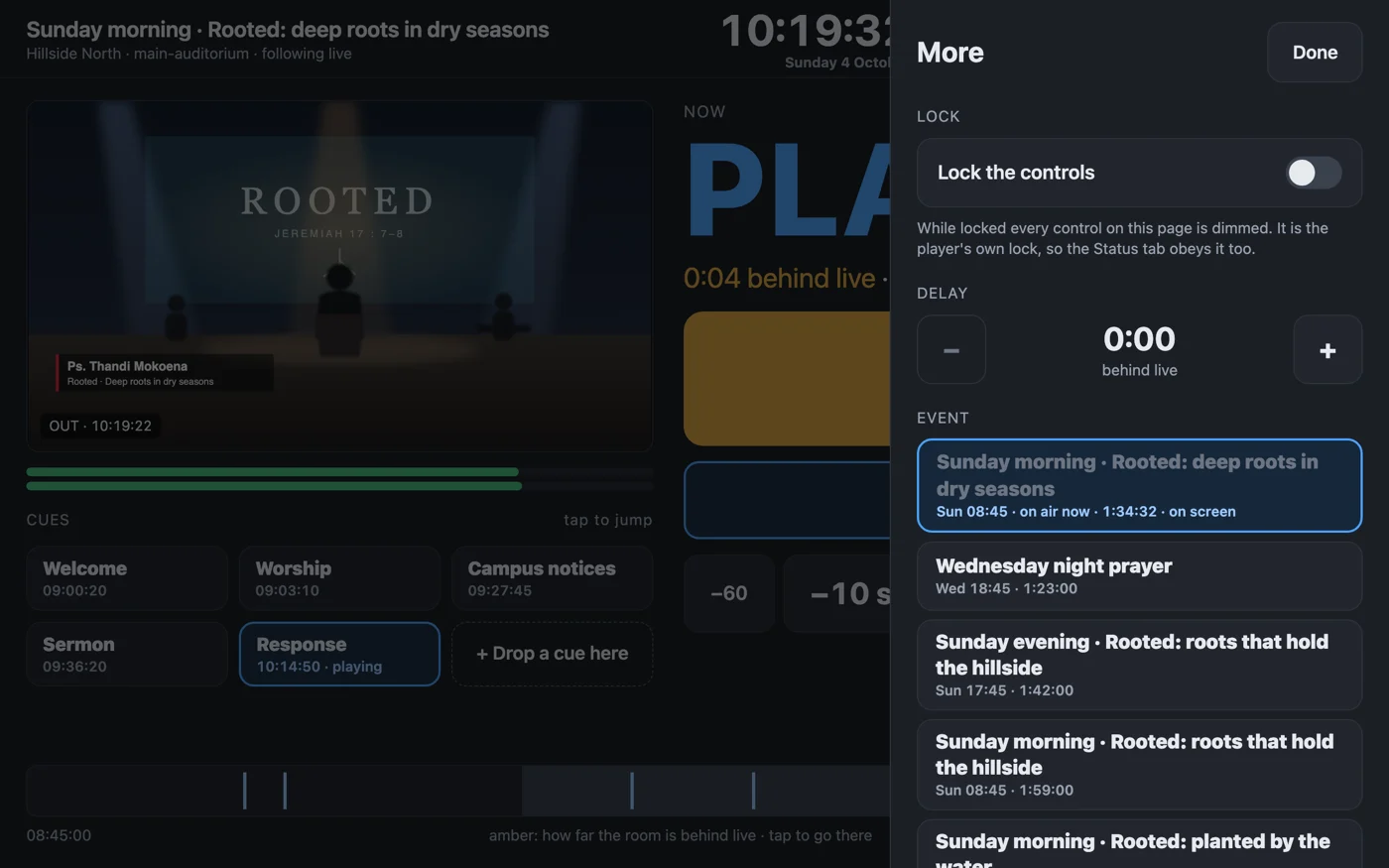
Sending or playing from OBS? The free plugin gives the booth a phone page — go live, end, the connection, a button per cue — and a campus the same on its side: play, hold, catch up, stay behind.
Every channel, every angle
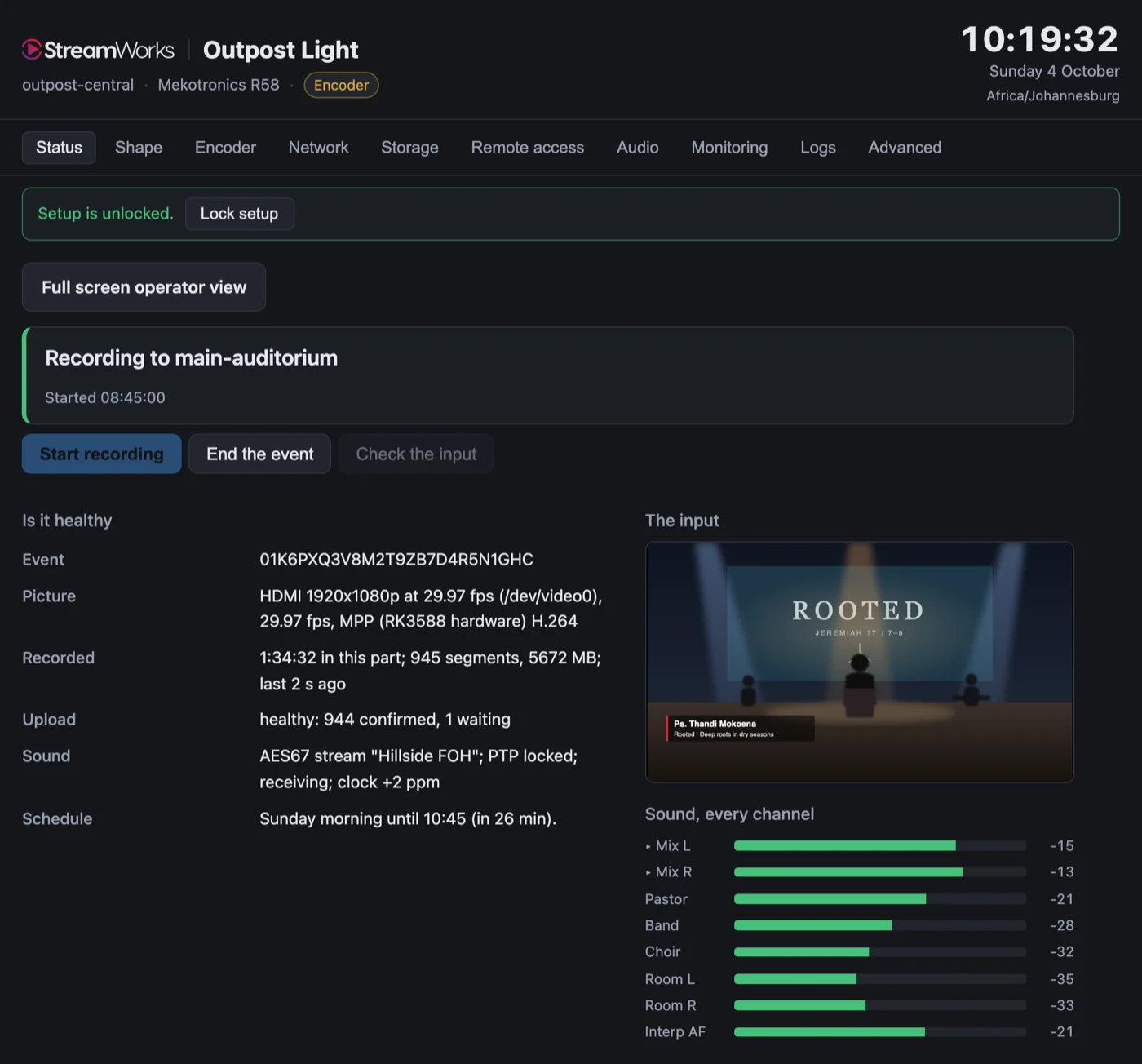
An Outpost joins the sound network you already run and takes each channel as it is, alongside up to four camera angles in lock-step.
The sender joins your sound network directly, locks to its clock, and shows every channel by name with its own meter. A Dante network works through Dante’s AES67 mode: the box appears in Dante Controller and you route to it there, like any other device.
An AES67 network needs a clock leader (PTP) — usually your desk or a Dante device already provides one.
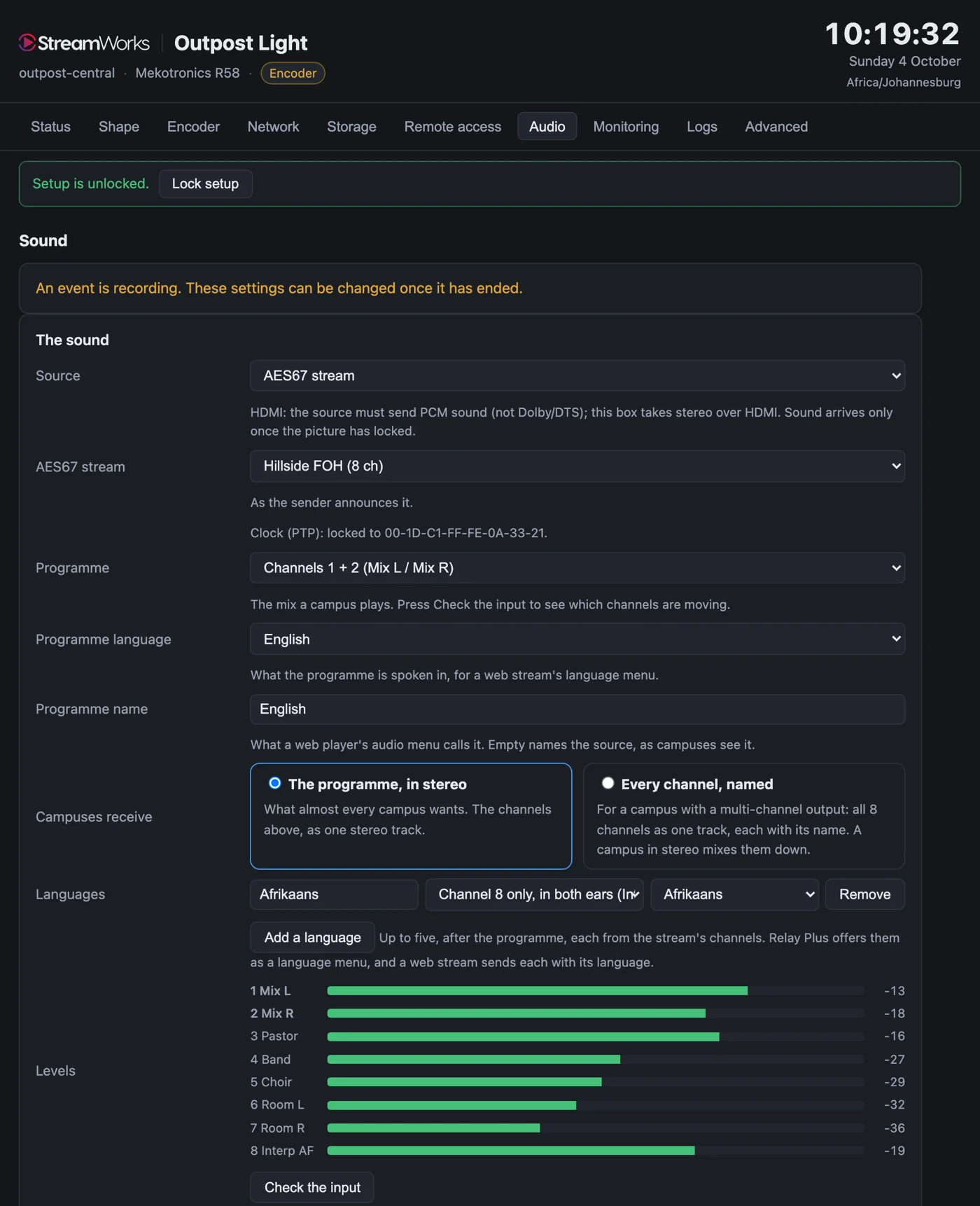
Send the programme mix in stereo, or send every channel so each campus mixes its own room: the clean pastor mic for a campus that runs its own PA, the band stems, room mics for ambience, the click for a campus band. Add an interpretation as a language of its own.
Send up to four cameras as one picture, exactly in time with each other and with the sound. A campus running OBS gets them back as separate angles and cuts between them itself; an Outpost can spread the picture across two screens.
The cost is bandwidth: four angles in one picture cost about what a single 4K stream does.
Every word
Live captions a few seconds behind the speaker, captions on every recording, and a language of its own for every interpretation you run.
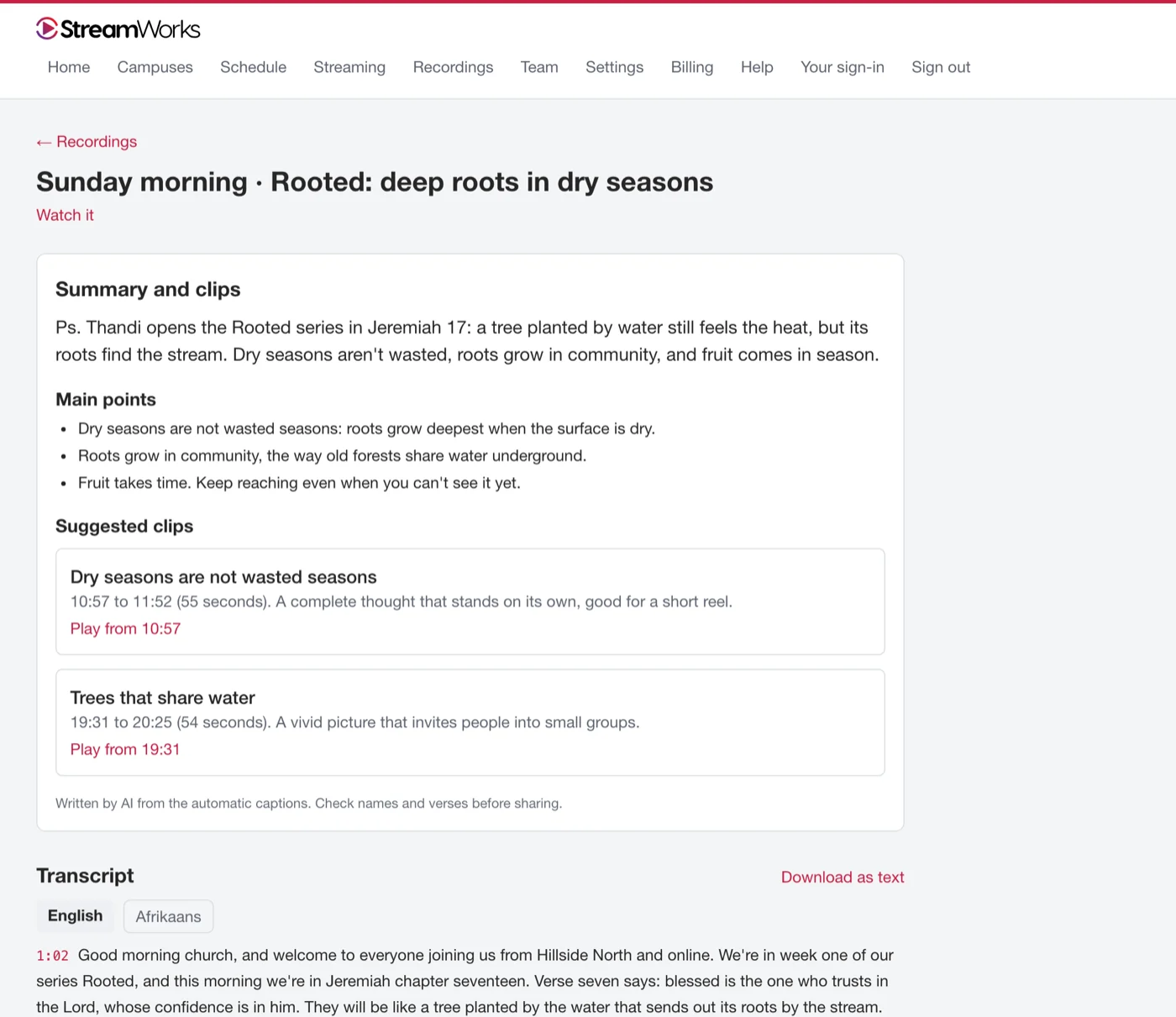
Every service gets captions once it’s finished, and from them a transcript you can read and download in each language. Click any line to play from there. With AI: a short summary, the main points, and the moments that stand on their own as clips.
Online
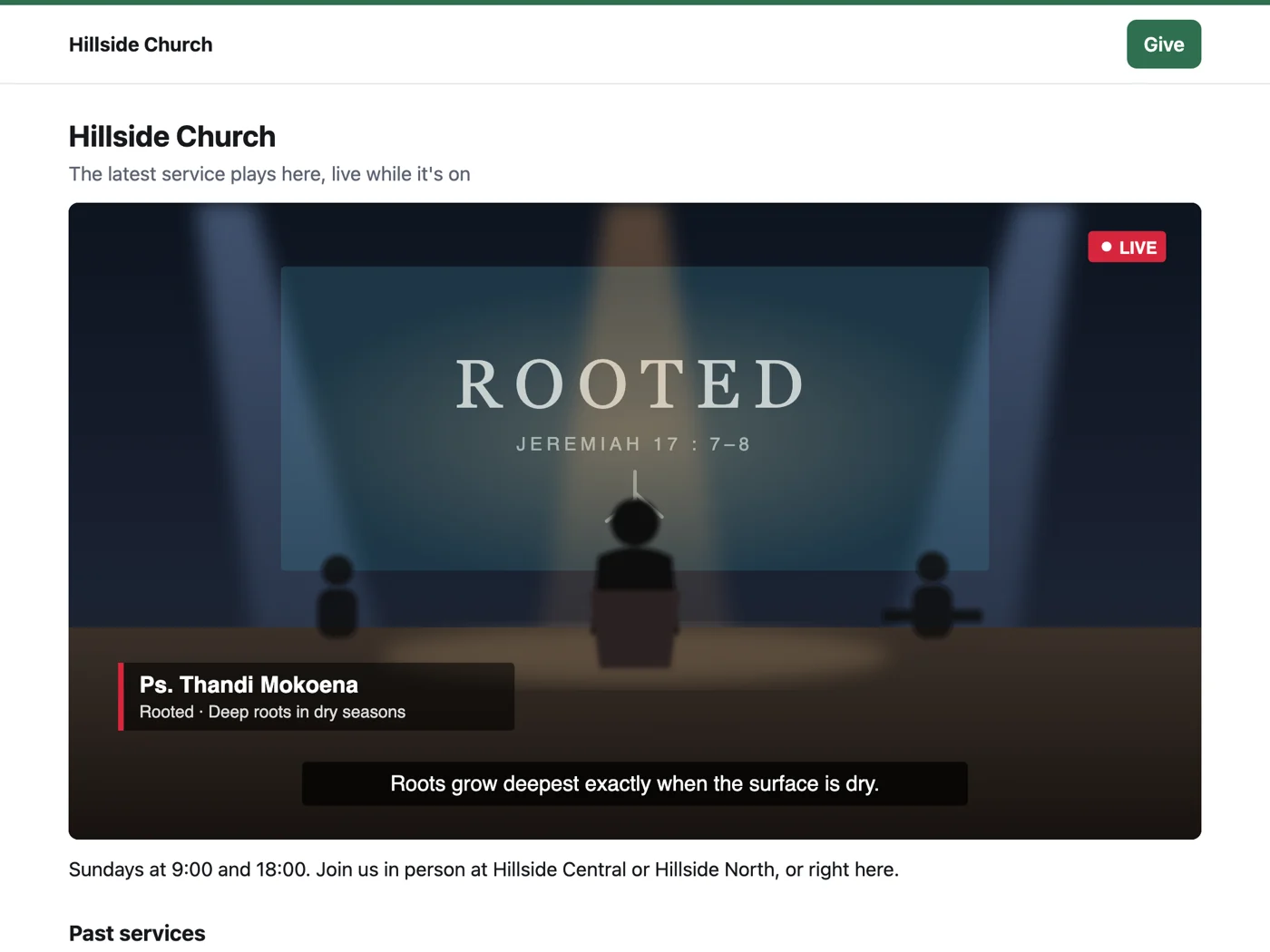
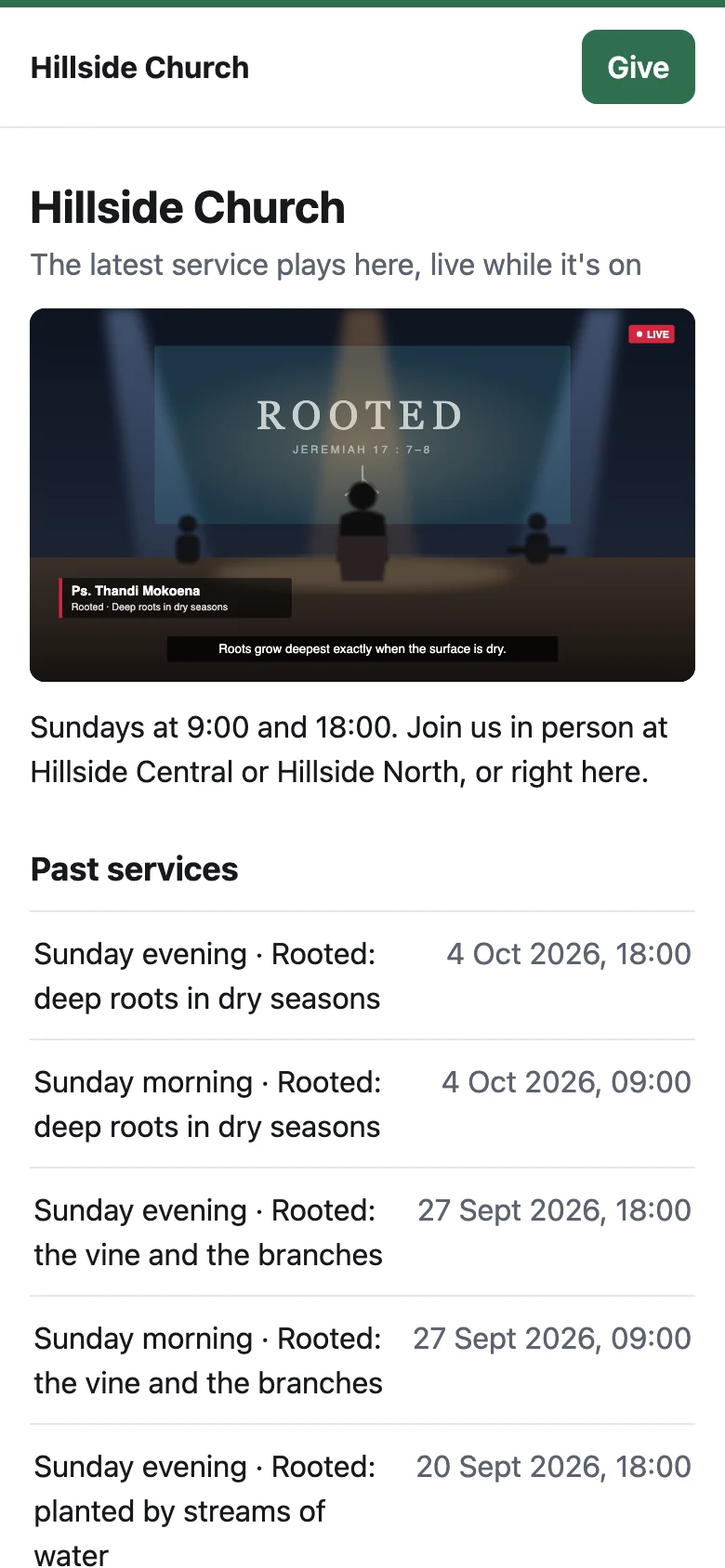
The latest service, live while it’s on and there to watch after, in your colours with your giving button and past services underneath. The player goes on your own website too, with one embed code.
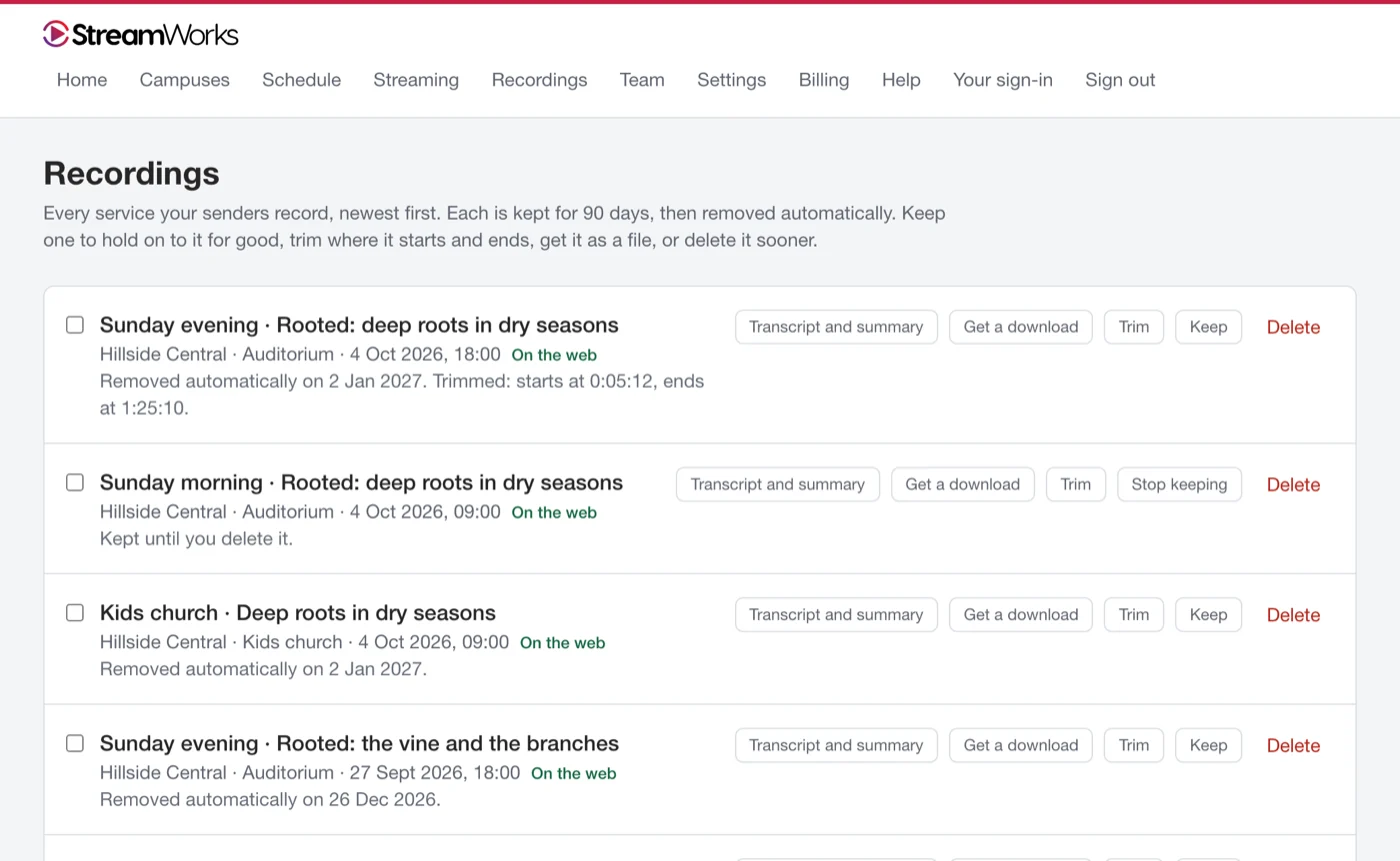
Keep one for good, trim where it starts and ends, download it as a file, or delete it sooner. Everything else goes when your plan’s time is up — and the date is right there.
Built for your booth
Your production goes in as it is — any switcher over HDMI or SDI, OBS if that’s what you run, alongside ProPresenter — and StreamWorks fits around the tools your team already uses.
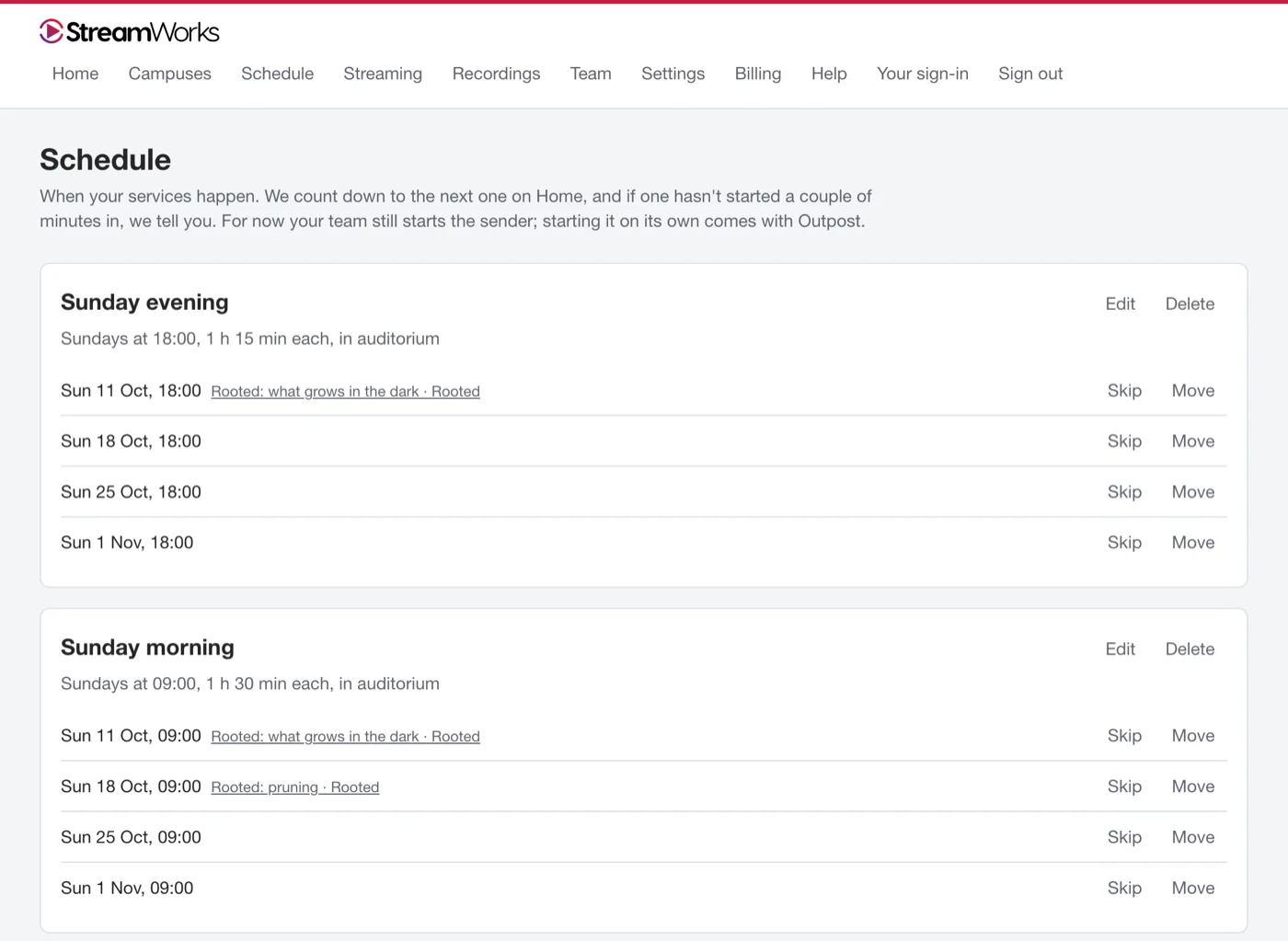
Set your service times once. Each week’s plan from Planning Center sits beside the service it belongs to, and you’re told if a service hasn’t started a couple of minutes in.
Email, Slack, Microsoft Teams, Discord or Telegram — told when something breaks and when it recovers. A key lets your foyer screen or dashboard read the status; webhooks tell your own tools the moment anything changes.
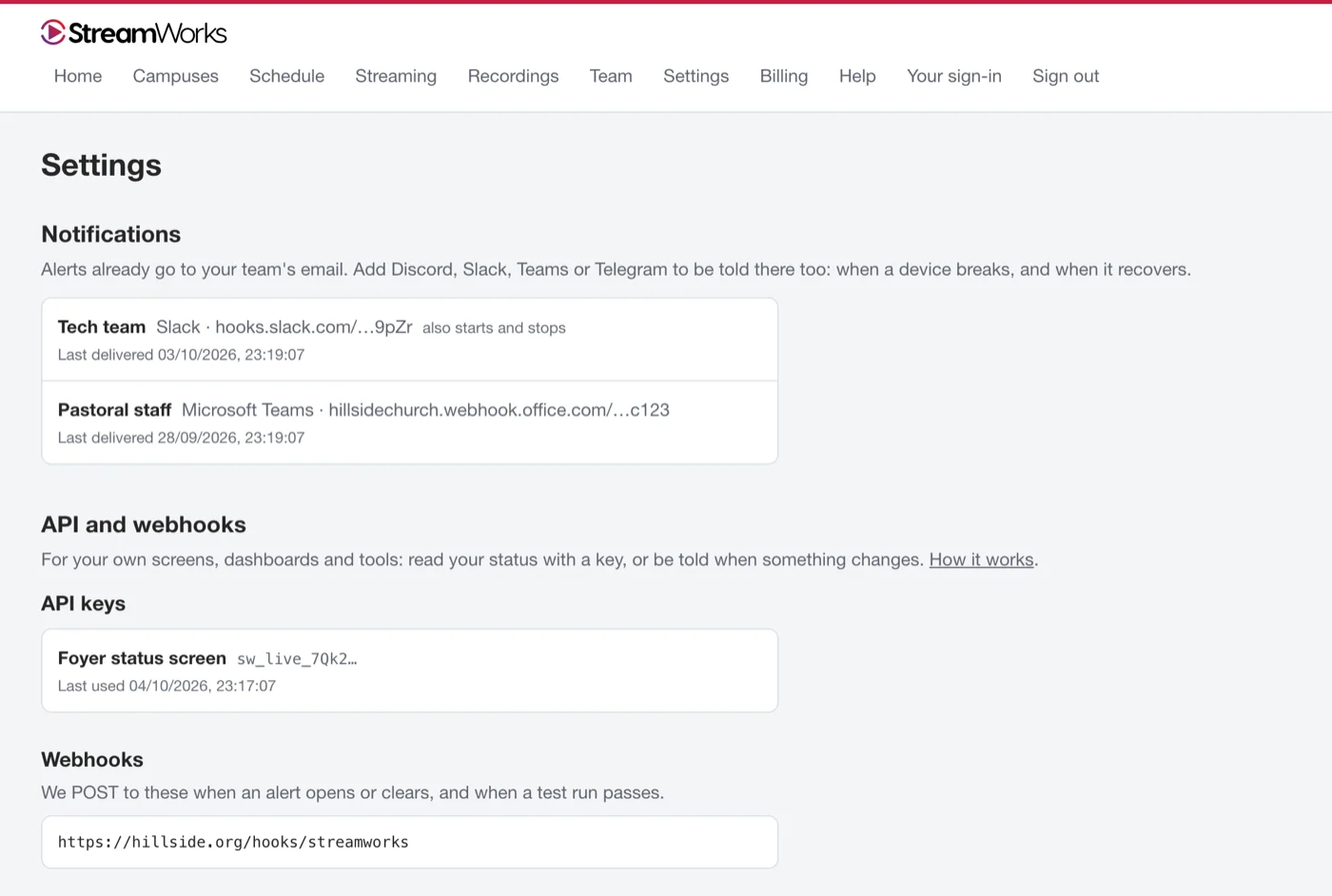
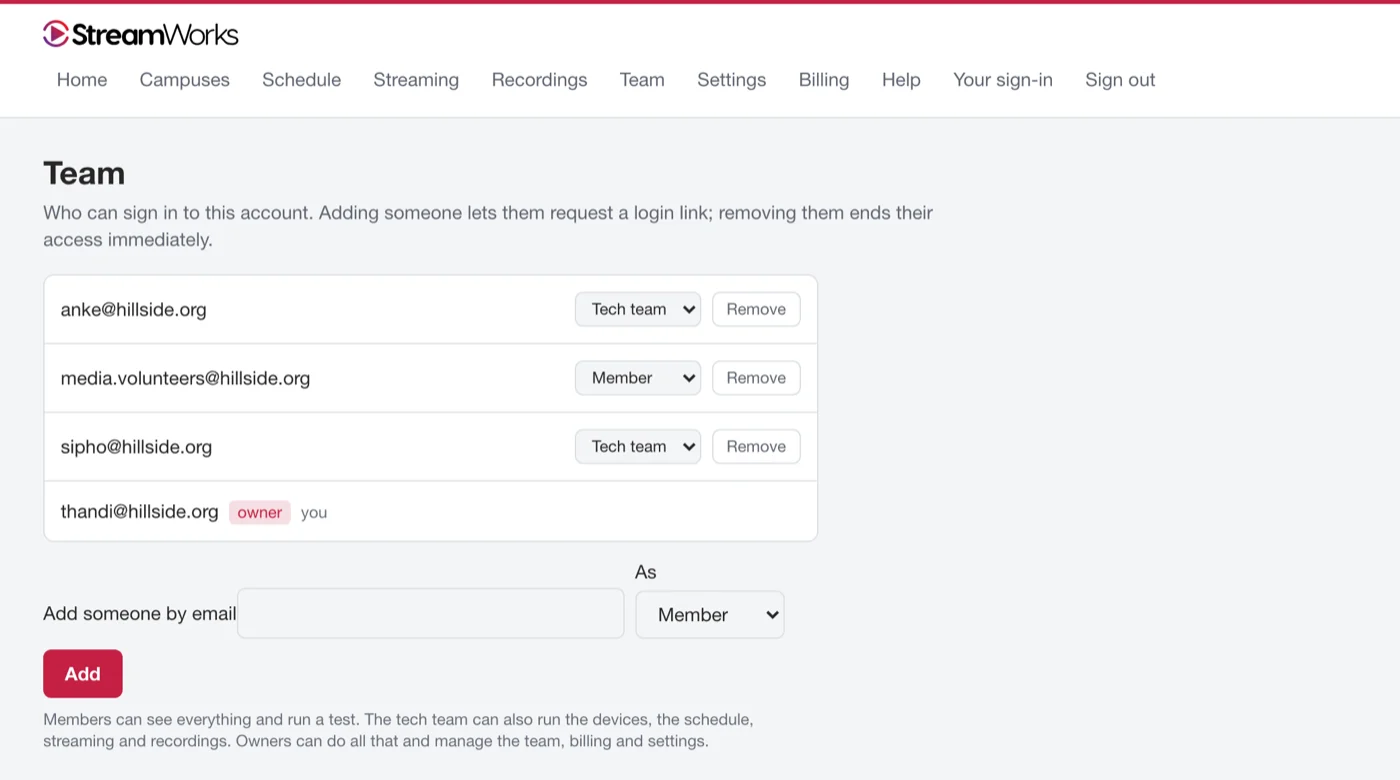
The owner looks after billing and the team; the tech team runs the equipment; volunteers can look without changing anything. Two-step sign-in for anyone who wants it. An integrator who supports you sees your campuses only once you approve them.
Watching over it
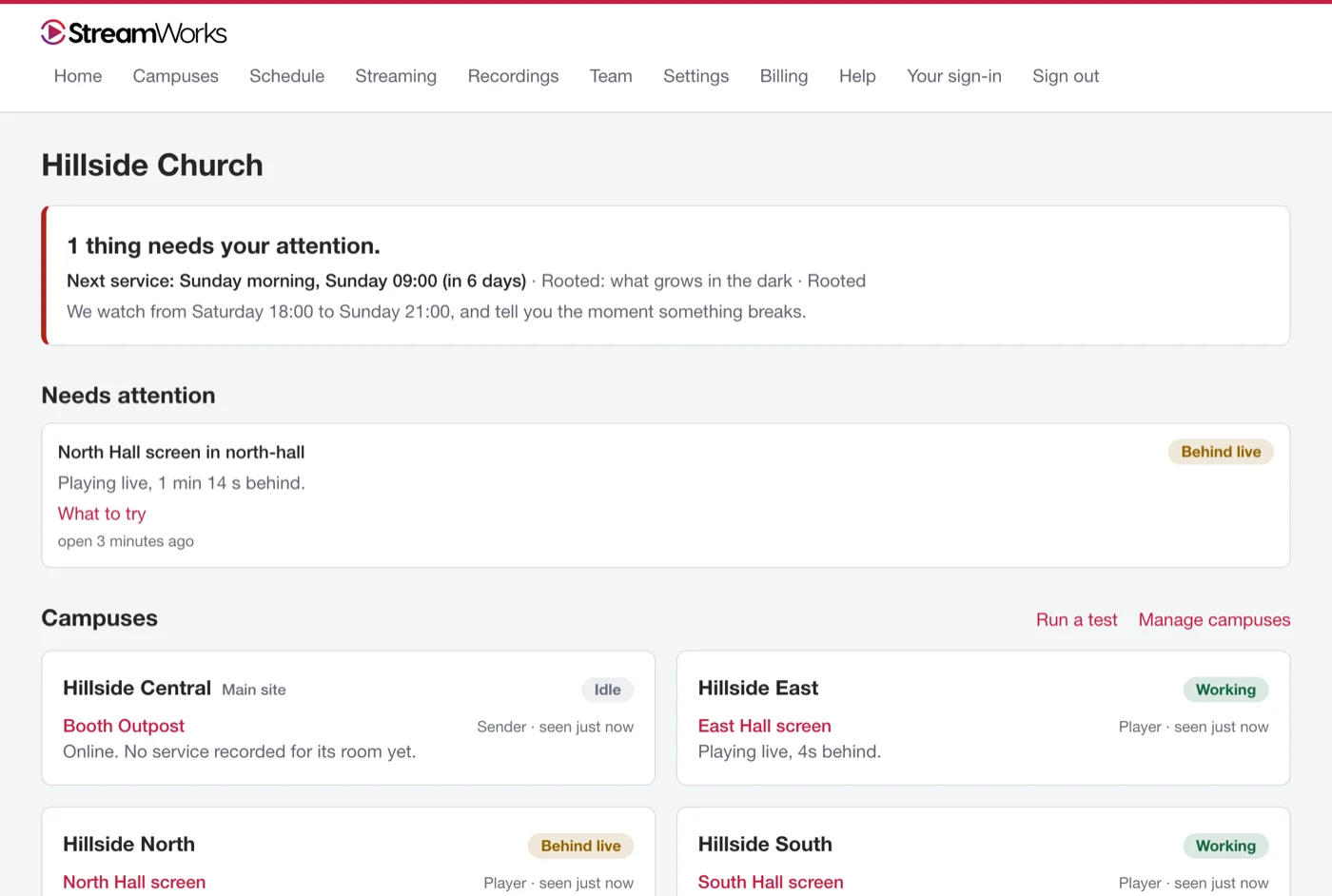
A campus falls behind. Home turns red, says which screen, and links to a short page on what to do about it — and when to stop trying and call us.
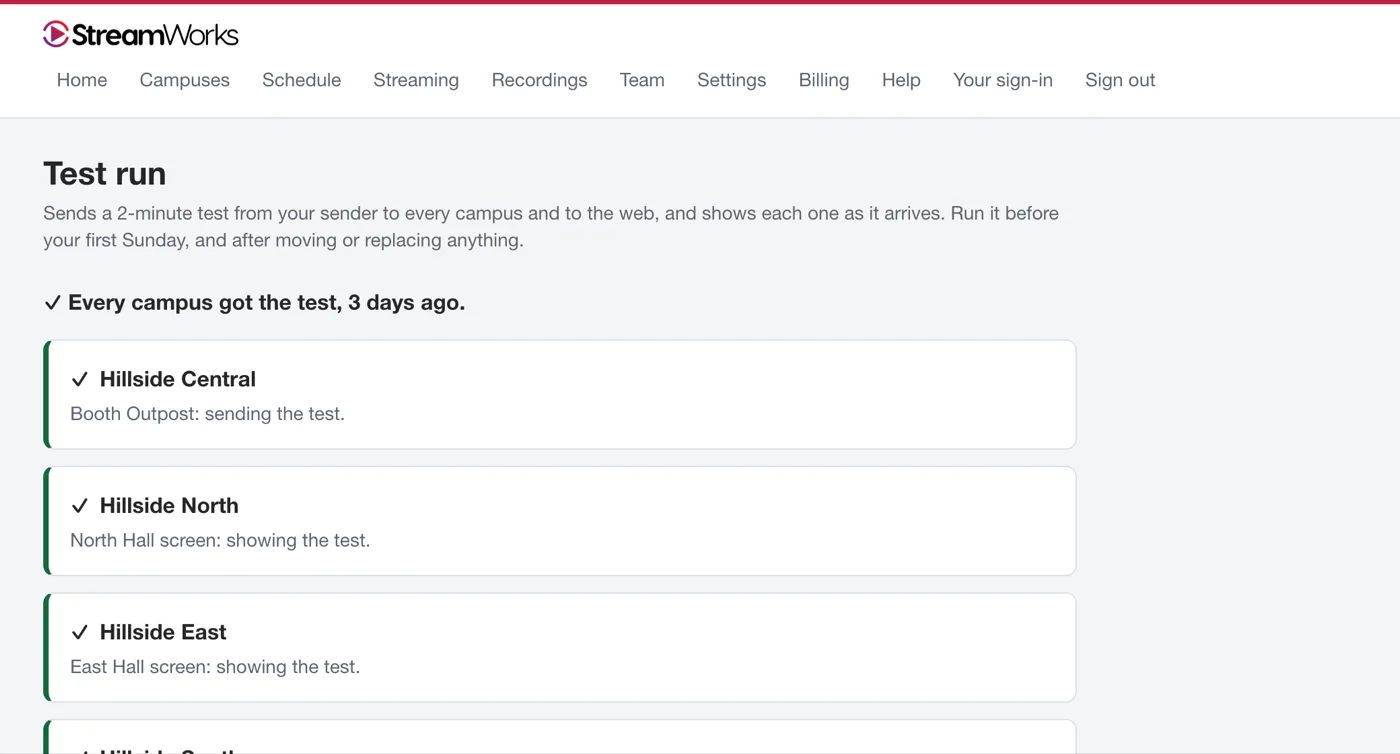
One button sends a two-minute test from your sender to every campus and shows each one arriving. Run it before your first Sunday, and whenever anything moves.
Restart a box or see what’s going into it from the dashboard. Support can open a box’s own page for half an hour, only when your church allows it — and you can end it any time.
Specifications
| What it does | |
|---|---|
| Sending | OBS (x264, NVENC, QuickSync or AMF; H.264 or HEVC), or an Outpost sender. Any switcher over HDMI or SDI. |
| Cameras | One stream per room; up to four cameras sent as one picture and split back apart at each campus. |
| Audio | Native AES67: in on the sender (stereo or eight named channels, PTP-locked), out from a campus player (eight channels); Dante through its AES67 mode. From OBS, up to six tracks or eight packed channels. HDMI: stereo in, eight channels out. |
| Languages | The programme plus up to five named tracks with language codes, each with captions online, and a different track per destination. |
| Campus playback | Hardware decoding of H.264, HEVC and AV1; one screen up to 4K30, the same picture on two, or one picture across two. |
| Delivery | Anchor: written to disk at the source, queued through outages, confirmed by your storage before it is listed; an optional second bucket. Each campus starts with a minute in hand. |
| Control | Box web page, phone pages, Bitfocus Companion (actions, feedbacks, variables, presets), shared cues, schedules held on the box. |
| Remote access | A device channel to StreamWorks; support sessions of 30 minutes with the church’s approval; optional ZeroTier or Cloudflare tunnel. No ports opened on the church router. |
| Integrations | Planning Center; alerts to email, Slack, Teams, Discord and Telegram; API keys and webhooks. |
Hardware specifications are on the Outpost page.
Tell us about your campuses and your booth, and we’ll walk you through it live.